
In This Article:
I use TradingView’s Stock Screener to narrow down the stocks I review for swing trades. The filters below reflect my own approach to finding liquid stocks with enough price movement and a favorable trend. I’ll show you how to set up the scan and explain what I check after it returns a list.
How to Set Up a TradingView Swing Trading Screener
1. Open the Stock Screener
In TradingView, open Products → Screeners → Stocks. You can also open the Stock Screener from a chart using the Products menu. TradingView changes its layout from time to time, so the location may look different from the screenshot below. You can also follow TradingView’s current Stock Screener instructions.
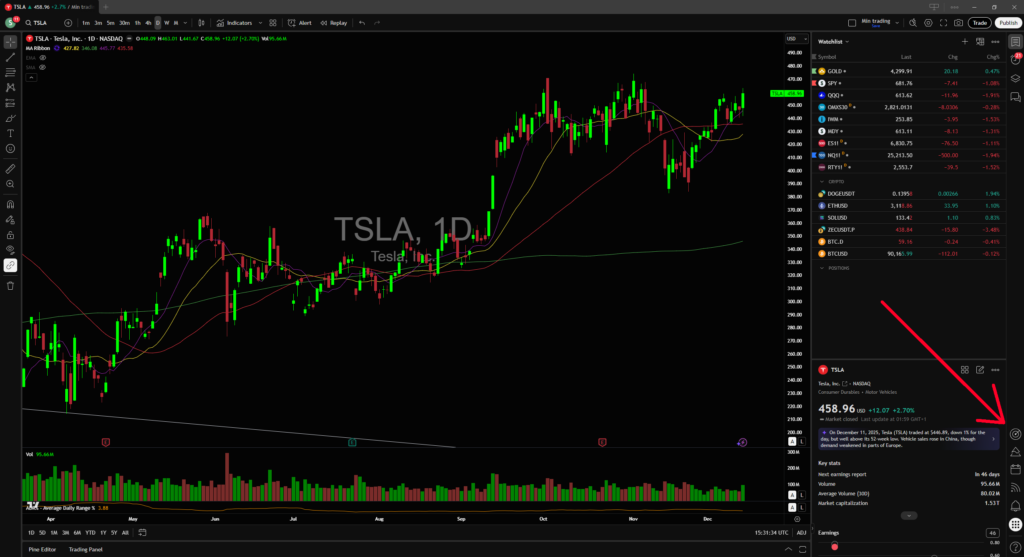
2. Choose the market and add filters
Select the market you want to scan. I focus on U.S. stocks, so I select the United States. Then click the + button in the filter panel to add criteria. TradingView also lists Shift + F as a shortcut for adding a filter.
Start with the filters you need and enter the values below. The names and available settings can vary slightly with TradingView’s interface and data options.
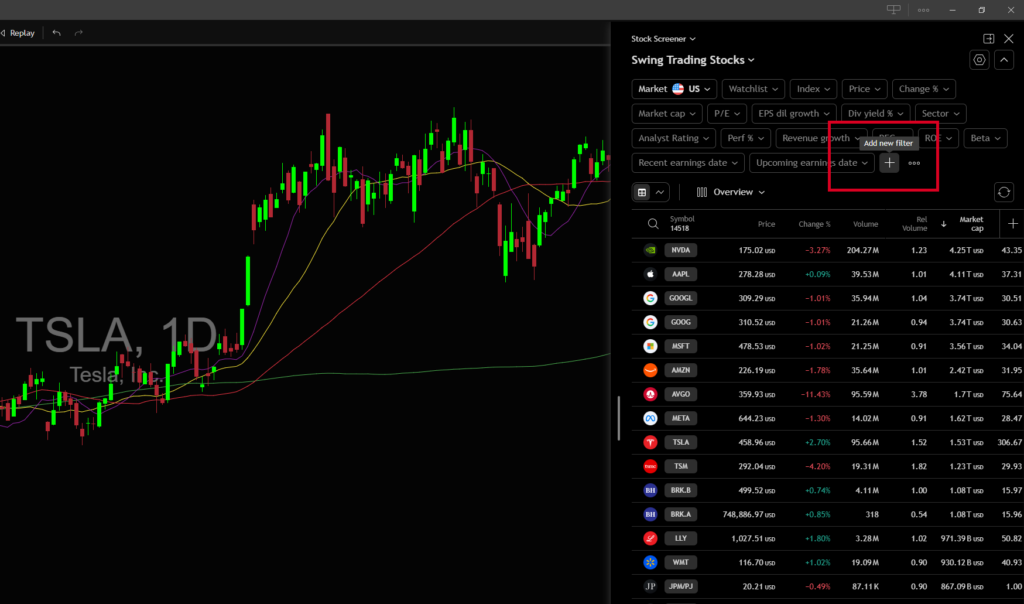
3. Add my swing trading stock filters
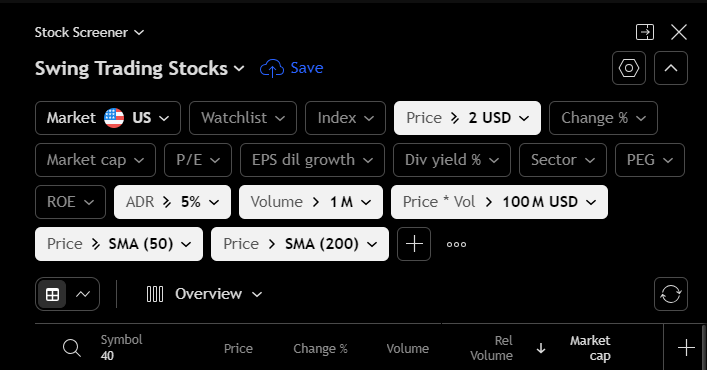
This is the starting scan I use. The exact number of results will change with the market and the filters you apply.
| Filter | Starting setting | Why I use it |
|---|---|---|
| Price | Above $2 | Removes the lowest-priced stocks from my results. I prefer trading stocks with higher prices. |
| ADR% | Above 5%; I often prefer above 6% | Finds stocks with a larger typical daily price range. It measures movement, not trend direction. |
| Share volume | Above 1 million | Helps narrow the list to stocks with more trading activity. I may lower it to 500,000, but I still check the spread. |
| Dollar volume | Above $100 million | Helps me focus on stocks with substantial traded value. Check whether the filter uses average or current-session volume. |
| Price vs. moving averages | Above the 50-day and 200-day SMAs | Finds stocks trading above these averages. I still check the chart to see whether the trend and setup look good. |
The scan is designed to find stocks for long swing trade ideas in an uptrend. These settings are my starting point, not universal rules. You can save the screen in TradingView and adjust the thresholds as your results and strategy require.
Price
I set the minimum price above $2. I prefer stocks priced higher than that because, based on my own trading journal, I’ve done better trading them. That is my experience, not a guarantee that higher-priced stocks will perform better.
If you’re new to swing trading, you could begin by looking at stocks above $3. I sometimes suggest starting with a manageable price range, such as $3 to $10, while you learn to compare charts and manage risk. You don’t have to cap the scan at $10; use a range that fits your account and trading plan.
Average Daily Range (ADR%)
ADR% measures a stock’s average daily high-to-low range as a percentage of its price. It helps me compare how much different stocks typically move. TradingView’s Stock Screener includes ADR and ADR% filters; see its ADR help page for the current instructions.
The screenshot uses a threshold above 5, while I usually look for stocks above 6 ADR%. I may lower the threshold if the scan returns too few candidates. A higher ADR% means a stock has had a wider average range; it does not mean the stock is in an uptrend or that it will keep moving in the same direction. Higher volatility can also mean larger price swings and more risk.
ADR% and ATR% are related volatility measures, but they are calculated differently. ADR% focuses on the daily high-to-low range, while ATR% also accounts for gaps. TradingView explains the distinction in its ADR% and ATR% calculation guide.
Share volume
I usually set share volume above 1 million. I may lower it to around 500,000 if I want more results, but volume alone doesn’t tell me whether a stock will be easy to trade. I check the bid-ask spread and the stock’s dollar volume before adding it to my watchlist.
Dollar volume
Dollar volume is the value of shares traded. I use a $100 million threshold as a starting point because I prefer stocks with substantial trading activity. If the scan gives me too few candidates, I may lower the threshold, but I’m reluctant to go below $50 million.
Check how TradingView labels and calculates the filter you select. A current-session turnover figure is different from average daily dollar volume, and one unusual trading day can make current volume look unusually high. I still check the stock’s normal volume and spread on its chart before deciding it is liquid enough for me.
50-day and 200-day simple moving averages
I filter for stocks trading above both the 50-day and 200-day simple moving averages. This narrows the list to stocks that are above those trend references. It doesn’t confirm that a stock has a strong uptrend on its own, so I check the chart, including the direction of the averages and the price structure.
In a weak or falling market, this filter can leave you with very few results. If I’m still looking for long setups, I may remove the 50-day average filter and review the charts more carefully. I don’t loosen a filter just to force a trade when market conditions don’t support my setup.
Optional: revenue growth
I sometimes look for revenue growth above 30% as an additional fundamental filter. I don’t include it in the core scan because I’m also interested in stocks that meet my technical criteria without that growth rate.
Revenue growth can help describe a company’s business, but it doesn’t guarantee that funds or institutions are buying its stock, and it doesn’t replace chart analysis. Add the filter only if it fits the kind of companies you want to trade.
How to Review the TradingView Scan Results
After you enter the filters, TradingView will show stocks that meet them. In the example below, the scan returned roughly 40 to 50 stocks. Your results will change as prices, volume, and market conditions change.
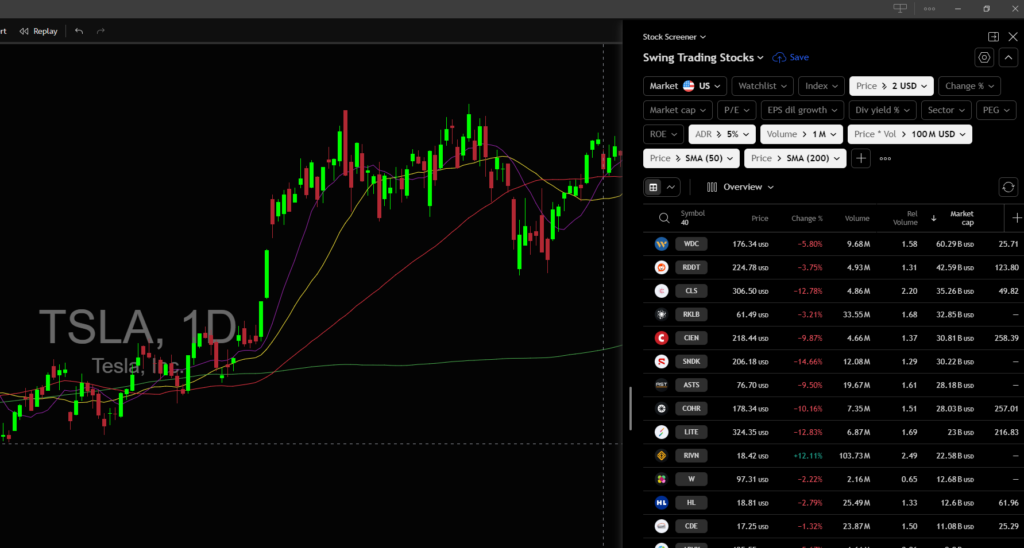
I use the screener to create a list to review, not to choose a trade automatically. I open the daily chart for each candidate and look at its trend, price action, and whether it has a setup I understand. I also check the spread and upcoming earnings, since a stock that passes the filters can still have risks that the scan doesn’t address.
If the scan returns too many stocks, I may raise the ADR% or dollar-volume threshold. If it returns too few, I may lower one filter at a time and compare the new results. Changing one setting at a time makes it easier to see why the list changed.
I prefer to keep the moving-average filters in a normal bull market and adjust the volatility or dollar-volume settings first. In a bear market, I reassess whether I want to search for long candidates at all rather than treating a looser scan as a reason to trade.
You can use similar criteria in other platforms too. See my guides to Finviz swing trading scan settings and TC2000 swing trading scan settings, or browse my other swing trading scans.
Frequently Asked Questions
Can TradingView scan stocks for swing trading?
Yes. You can use TradingView’s Stock Screener to filter stocks by criteria such as price, volume, ADR%, and moving averages. The scan helps narrow down the market so you can review a shorter list of charts.
What are good filters for a swing trading stock screener?
That depends on your strategy. My starting filters are price above $2, ADR% above 5, share volume above 1 million, dollar volume above $100 million, and price above the 50-day and 200-day simple moving averages. I adjust them based on the results and market conditions.
How many stocks should a swing trading scan return?
There isn’t a fixed right number. My example has returned around 40 to 50 stocks, but the number changes with the market and the filters. The useful number is a list you can review properly, not a target you need to hit.
Does a TradingView screener tell me which stock to buy?
No. A screener only identifies stocks that match the conditions you set. You still need to review the chart, decide whether the setup fits your strategy, and manage the risk of the trade.
Final Thoughts
I’ve spent a lot of time testing different scans, and these are the filters that have worked best for the stocks I like to trade. They won’t suit every trader or every market. Use them as a starting point, then keep a journal so you can see which types of stocks and settings work for your own process.
If you have questions about how to scan stocks for swing trading in TradingView, you can reach me on X, where I post charts and trading thoughts.