
In This Article:
Finviz has enough filters to make a simple stock screen complicated. I keep mine focused on the basic stock characteristics I prefer, then add revenue growth as an optional fundamental check. Below are the settings I use and what I look for when adjusting them.
A screener cannot tell me whether a stock has a good setup or whether I should take a trade. It gives me a shorter list to work through. Here are my Finviz screener settings for swing trading, what each filter is meant to do, and how I adjust the results.
My Finviz swing trading screener settings
These are my starting filters. They are personal preferences, not universal requirements. You may want to raise or lower the thresholds depending on your strategy, account size, and the stocks you trade.
| Filter | My setting | What I use it for |
|---|---|---|
| Volatility | Above 5% | Looks for stocks with a larger average daily high-to-low percentage range. |
| Average Volume | Above 1 million | Filters for stocks with higher average daily share volume. |
| Price | Above $2; sometimes $5 | Sets my preferred minimum share price. |
| Simple Moving Average | Price above SMA50 and SMA200 | Keeps stocks above both averages for this long-biased scan. |
| Dollar Volume | Above $100 million, if available in your filter menu | Adds a liquidity threshold based on the value traded. |
| Sales growth | Optional: review companies with strong revenue growth | Adds a fundamental check; I may review the figures manually. |
Finviz changes its interface and filter options from time to time, and some features may depend on your plan. If a filter label in my screenshots no longer matches your version, use the explanation below to find the closest equivalent.
How to use Finviz for swing trading
1. Open the Stock Screener
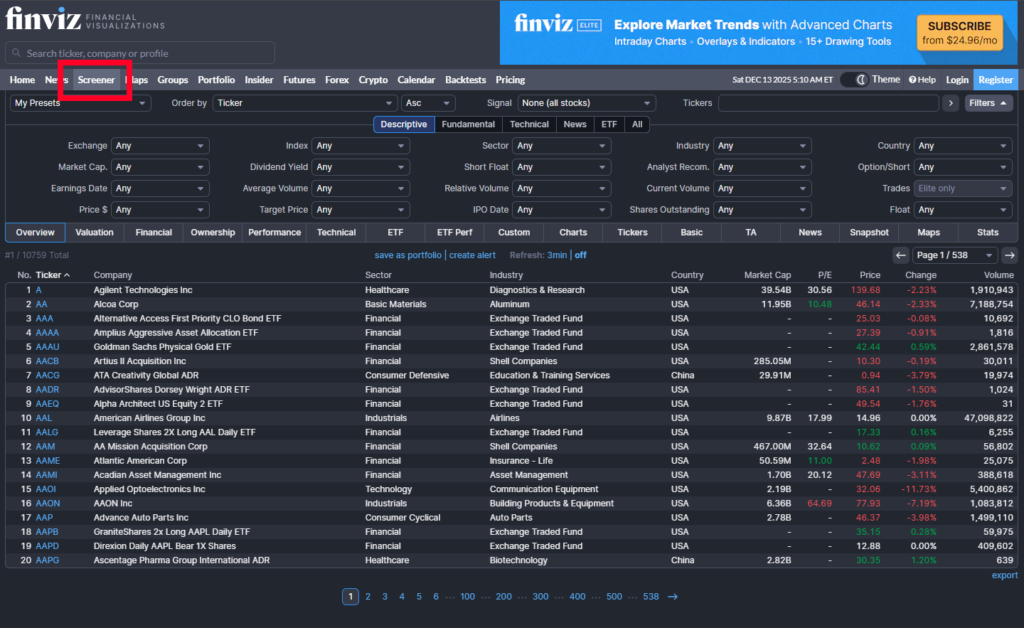
Go to the Finviz Stock Screener. Open the filter controls, then choose the screener filters you want to use.
2. Select the stock universe and filters
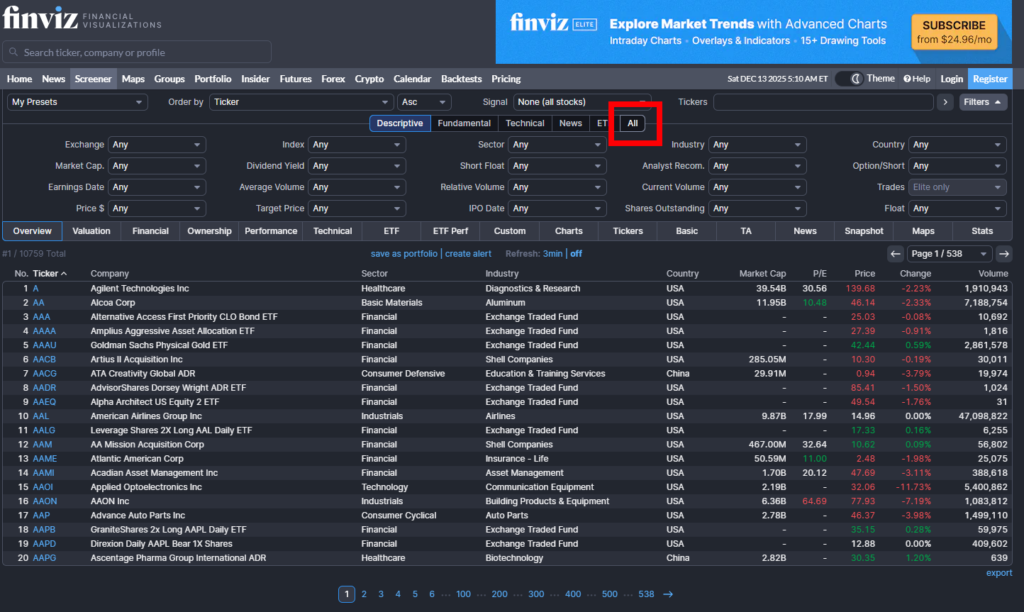
Choose the stock universe you want to scan. In the older interface shown below, I used the All view to see the available filters. The layout and labels may have changed, but the goal is the same: apply each filter and check that the result list updates.
3. Apply my swing trading filters
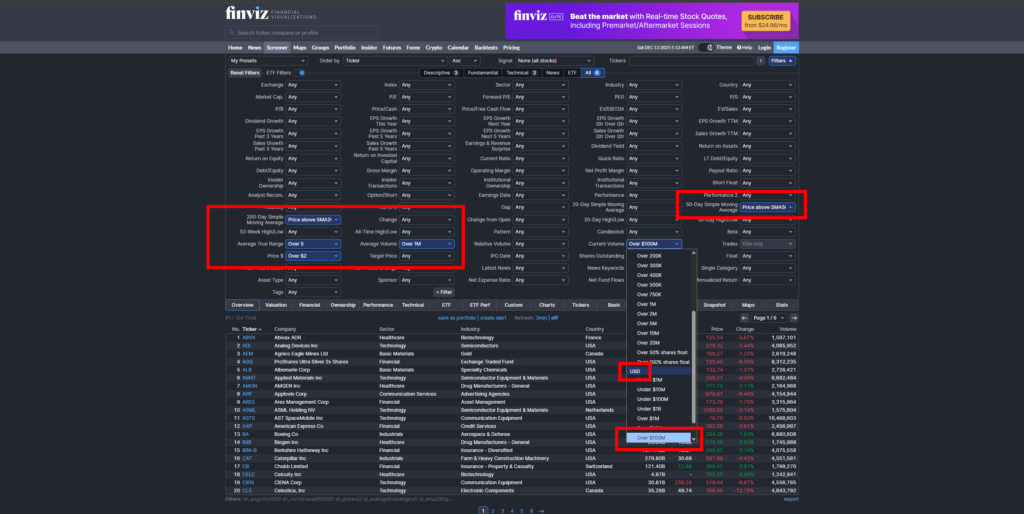
Add the filters from the table above. My original filter layout is shown here. If the dropdowns look different, use the explanations in the next section to choose the current Finviz filter that matches each criterion.
What each Finviz filter means
ATR Volatility above 5%
My original article called this filter ATR, but for a percentage-based average daily range, the closer Finviz filter is Volatility. Finviz defines Volatility as the average daily high-to-low percentage range. ATR is different: it measures the true range in price units and includes gaps from the previous close.
I prefer stocks with a larger daily range because I want stocks that have room to move. That does not mean the stock has bullish momentum or will move in the direction I want. A wider range can also mean more risk, so I still check the chart and plan the trade around its price action.
I usually look for volatility above 5%, and I often prefer 6% or more. Set the threshold that matches your approach and the options available in your Finviz filter menu.
For a separate explanation of range measurements, see my guide to ADR and ATR PCF formulas for TC2000.
Average Volume above 1 million
I set Average Volume above one million shares. This is an average daily share-volume measure, not the number of shares traded today. I use it as one initial liquidity screen, but it does not tell me the spread or guarantee that I will get a particular fill.
Check the spread and trading activity on the actual stock before considering a trade. If one million shares is too restrictive for the stocks you follow, try a lower threshold and review the results.
Price above $2 or $5
I generally avoid stocks below $2. You can set the minimum higher, such as $5 or $10, if that fits your trading plan. A higher minimum will reduce the number of results, so I adjust the other filters only if the list becomes too small.
Price above the 50-day and 200-day moving averages
I use the Finviz technical filters for price above the 50-day and 200-day simple moving averages. This makes the scan long-biased: it finds stocks currently trading above both averages.
Being above two moving averages does not prove that a stock is in a strong or healthy uptrend. The averages can be flat or turning down, and the stock may be extended or forming a pattern I do not trade. I check the chart before deciding whether it belongs on my watchlist.
If you trade short setups, create a separate screen using criteria that fit your short strategy rather than treating this long-biased list as a short scan.
Dollar volume above $100 million
Dollar volume is the share price multiplied by the number of shares traded. It helps compare the value traded in stocks with very different share prices. For example, 100,000 shares at $1 represents a different dollar amount than 100,000 shares at $100.
In the version of Finviz shown in my original screenshot, I selected the USD option under the volume filters and set it above $100 million. Finviz’s current help page describes its standard Current Volume filter as shares traded, so check whether a dollar-volume option appears in your version. If it does not, you can use price and average volume as a rough comparison, then check the stock’s liquidity separately. That estimate is not the same as a direct dollar-volume filter.
I use a high dollar-volume threshold as one way to narrow my list. It does not prove that institutions are buying, guarantee a tight spread, or ensure that a stock will move smoothly.
Optional: review revenue growth
I also like to review companies with strong revenue growth. The Finviz filters may offer sales-growth measures over particular periods, but those are not necessarily the same as the annual revenue-growth figure I want to check. If I cannot find the period I want, I review revenue growth manually using a fundamentals platform such as MarketSurge.
Revenue growth is an additional research check, not a guarantee of institutional buying or future stock performance. If you do not want to add fundamentals, you can also make a separate momentum list using 1-, 3-, or 6-month gainers, as I explain in my guide to swing trading scans.
How I review the Finviz scan results
Once the filters are set, Finviz returns a list of stocks that meet those conditions. The number will change with market conditions, the stock universe, and the thresholds you choose. I do not aim for an exact number of results.
If the list feels too large, tighten one filter at a time. You could raise the minimum price, average volume, or volatility threshold, or add a fundamental filter. If the list is too small, loosen one condition and see how the results change.
Then I open the charts and look for a setup I actually trade. I also check the broader market, price action, liquidity, and upcoming events such as earnings. Passing the Finviz filters only makes a stock a candidate for review; it is not an entry signal.
For other ways to build a swing trading watchlist, see my guides to swing trading scans and my TC2000 swing trading scan.
Frequently asked questions
What are good Finviz settings for swing trading?
My starting filters are volatility above 5%, average volume above one million shares, price above $2, and price above the 50-day and 200-day moving averages. I also use a $100 million dollar-volume threshold when that filter is available in my Finviz version. Adjust these settings to fit your own approach.
Should I use ATR or Volatility in Finviz?
Use Volatility when you want a percentage-based average daily high-to-low range. Finviz defines ATR in price units and includes gaps from the previous close, so an ATR value of $5 means something different for a $50 stock than for a $500 stock.
Does Finviz find stocks that are ready to buy?
No. Finviz filters stocks based on the conditions you select. Review the charts and decide whether a stock has a setup that fits your strategy and risk plan.
Final thoughts
These Finviz screener settings help me narrow the market to stocks with a larger daily percentage range, higher average share volume, a minimum price, and price above the 50-day and 200-day moving averages. I treat the results as a watchlist, not a list of automatic trades.
Adjust the filters to suit your approach, and change one at a time so you can see how it affects the results. I share more about finding stocks and reviewing setups in my swing trading scan guide and on X (@sellentrading).